
To Add keys to the system, you will need to be in the property profile, you can get there by entering the property name in the search bar at the top, or from the PROPERTIES button on the LETTINGS screen.
- Choose Key Bunches from the left hand ladder, to add you in house office bunch number, you can click onto the Office item

- You can then set your in house number by clicking the top right hand edit button.
- You can do the same for the Tenant set, and assign it to your own number.
- If you have any duplicate key bunches you can add these, by clicking onto the add button on the top right hand corner of the keys screen.
To check keys out
To check keys out, you will need to click onto the actions button on the item you want to check out. You will see this screen:
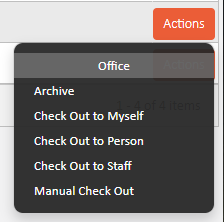
- Check out to myself, is you as a staff member
- Check out to a person, is someone on the system. For example, another staff member, contractor, tenant or landlord.
- Manual Check out, is to manually enter the details of the person checking the keys out.
Once you have checked the keys out, you will not be able to check them out again.
To check the keys back in/ Report as missing
To check the keys back in, you’ll need to go back into the keys screen and click onto the key bunch you want to check in. You will have an option on the left hand ladder for key bunch movement:
- This will give you a history of the keys that have been checked in/ out under that property.
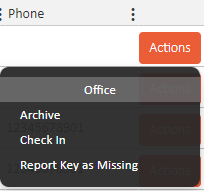
- To check keys in, you click onto the actions button and select the option that applies:
Comments
0 comments
Article is closed for comments.