
If you need to make a deposit deduction from a tenant at the end of a tenancy after you have carried out the closing inspection, you can add the details of this onto the system. If the deposit claim is successful the system will move the funds from the Tenants bond held account over to the Landlord’s main account in order for maintenance deductions to be carried out.
Please note: You do not need to carry out this process if you register your deposits with the DPS/TDS Custodial Scheme.
The first step will be to click into the tenancy; you can do this by clicking into the Lettings tab, and clicking into the Tenancies button and searching for the property.
Alternatively you can use the quick search bar to load the tenancy.
Now that you are in the tenancy you will need to click onto Deposit Disputes on the left hand ladder:
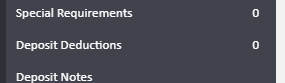
Once you have clicked onto that option you will see the below screen
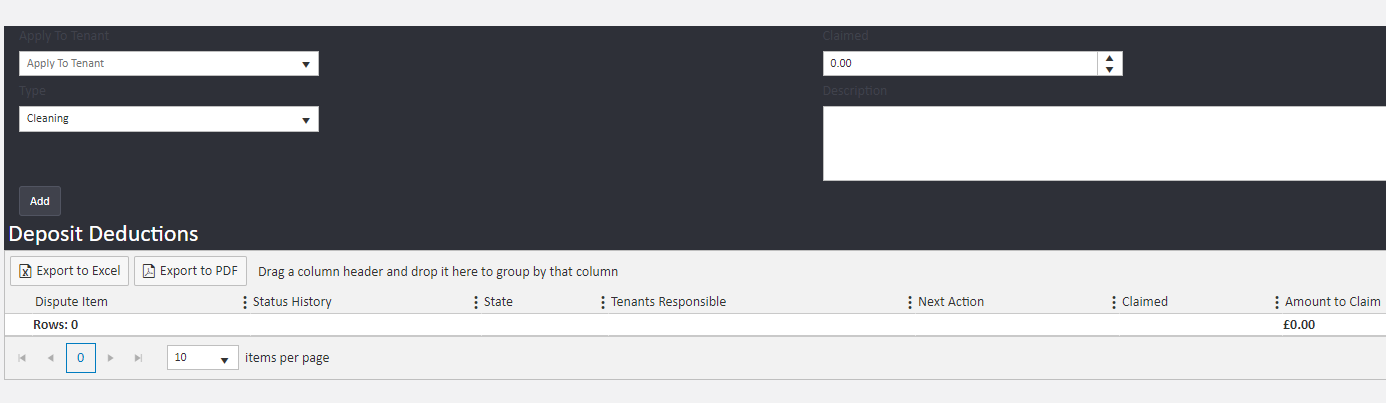
Here you can add the details of the deduction(s). First enter the name of the tenant you are making the deduction from (if you leave this blank it will split the claim between tenants). You will then need to choose the type of deduction claim from the second dropdown, and then you enter the amount you would like to deduct from the deposit. Finally enter a description for the claim; this description will appear on the tenant’s and Landlord’s accounts. Once you have added those details you will click the add button. This will save the claim and put it below the form as a list. You can add as many deductions as you need to. We would suggest adding the claims separately, so if the tenant disputes one claim but accepts the other, you have the opportunity to action accordingly.
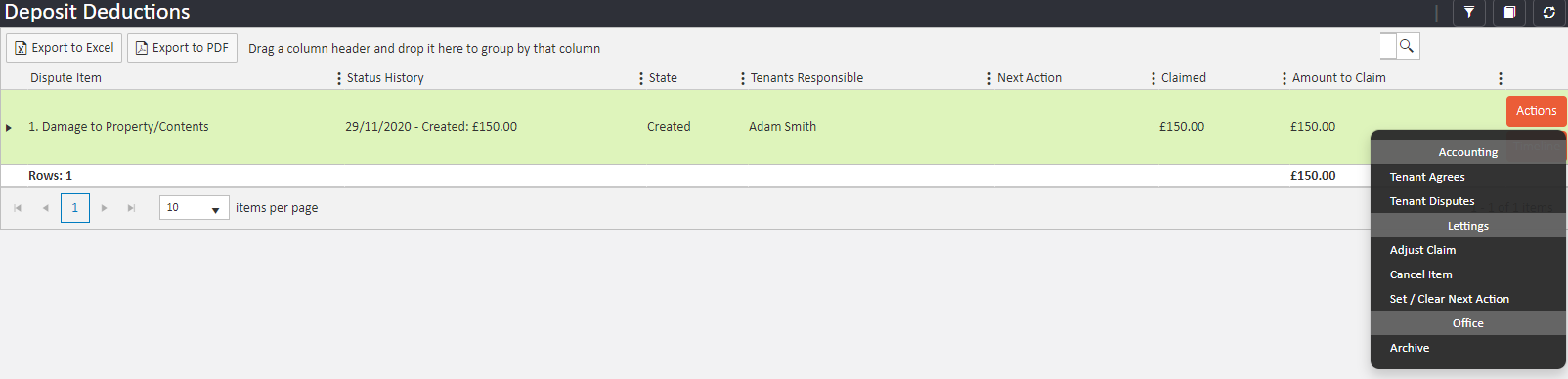
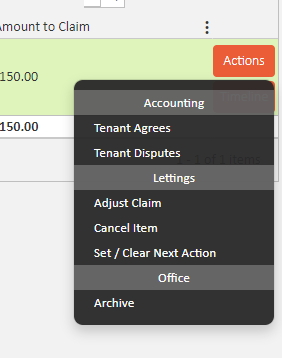
Now you have added your claim, you will be see an actions button on the right hand side of each of the claims. You have the following options:
Cancel Claim- This is to cancel the claim.
Set/clear action date- Here you can add in a next action date, you can use this if you are waiting for someone to get back to you regarding the deductions.
Adjust Claim- You can change the amount claimed with this option.
Tenant Disputes- If the tenant disputes the claim, you can select this option. The system will give you an option to advise how much the tenant is disputing:
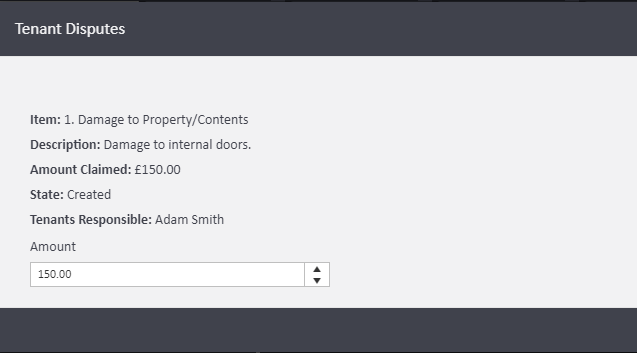
Tenant agrees- This is used when the tenant agrees to the claim
Once you have selected an action you will notice that the status history will have more information, the system will also time and date stamp anytime that information is changed.
Once a tenant has disputed/ accepted a claim your actions button will change.
Here you can:
Mark as resolved- This is used once everything has been dealt with and you can complete the claim
Cancel Item- Is used for cancelling the deduction claim
Set/ Clear next action- As above
Adjust claim- If you would like to adjust the claim, you can do it here.
Once you have marked the deduction as resolved, you will need to close the item from the actions button on the claim
Now that you have marked the item as closed if the deduction was accepted by the tenant, the system will move the funds from the tenant over to the landlord.
If the tenant disputed the claim, no action will be taken, and you will need to start the process again with an amount that the tenant agrees to.
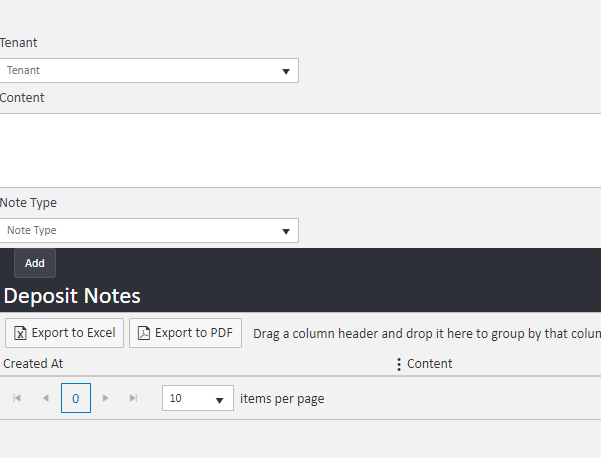
Because there is a lot of communication between different parties during deposit deductions/ disputes, there is a section on the left hand ladder called deposit notes. You can add notes relating to the deposits here.
Comments
0 comments
Article is closed for comments.