
To match properties to an applicant, you need to add the property requirements when setting up the applicant. The system will then send them emails, SMS or texts (depending on your defaulted preference or manual choice) to advise them that a new property has come on the market which they might be interested in.
You can also set matching criteria from instruction. This means that the landlord can specify what type of tenant he will accept such as "Student" or "Employed"
There are two ways in which you can use Applicant Matching. We will do it from the property first.
To do this, you need to go to your property by bringing it up in the search bar, then select the available tenancy.
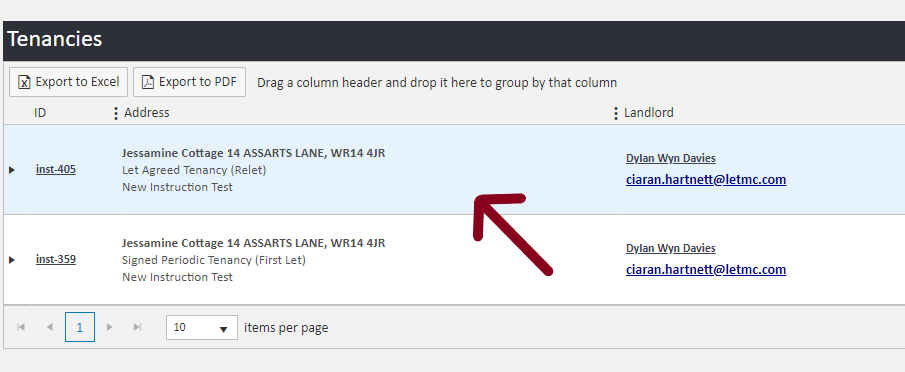
When you are in the tenancy, you will see the ladder lists two sections that say' Applicants Matching Property' and 'Potential Applicants Matching the Property'.
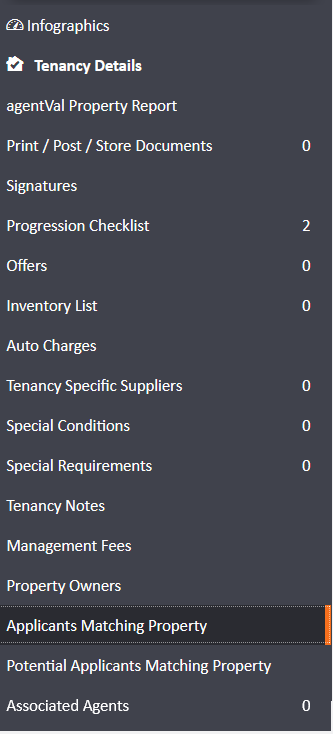
If you go to the 'Applicants Matching Property' option then the system will generate a list of active applicants that match the instruction you have set-up. This will match according to tags such as rental charge range and number of rooms in the property, plus more.
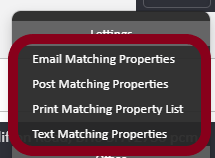
From this section you can send the property to individual applicants. To do this, go to 'Actions' on the right hand side of the applicant that you want to send it to and it will give you the options to send this property by post, SMS, Email or print.
If you select 'Potential Applicants Matching Property' in the ladder bar, you can then change the tenancy details to generate more results based on the tweaks made.
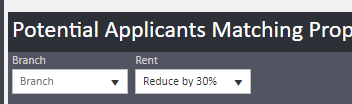
This is a good tool to use when you are unable to rent the property. It will tell you how many applicants you can match the property against if you decrease the rent by 10%, for example. You can then have a discussion with the landlord to say that it will match more of your applicants and give you a higher chance of successfully letting the property.
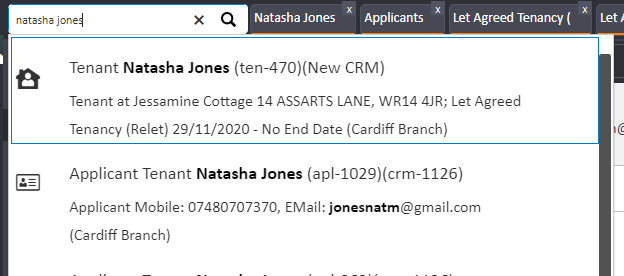
To match an Applicant to multiple properties, first bring up the applicant by typing their name into the quick search bar.
There are two ways that you can see the properties that match to this client.
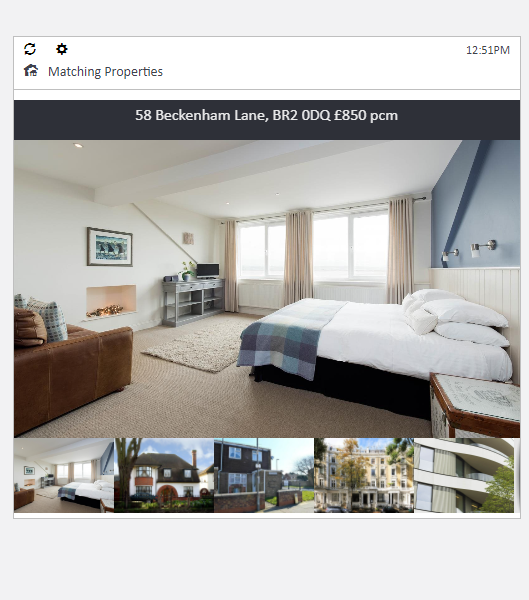
In the left hand side of the screen, you will have images of the property that the applicant has matched with.
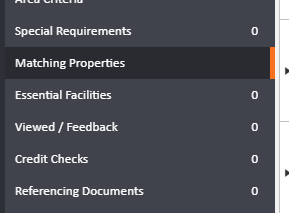
You will also have 'Matching properties' in the ladder bar.
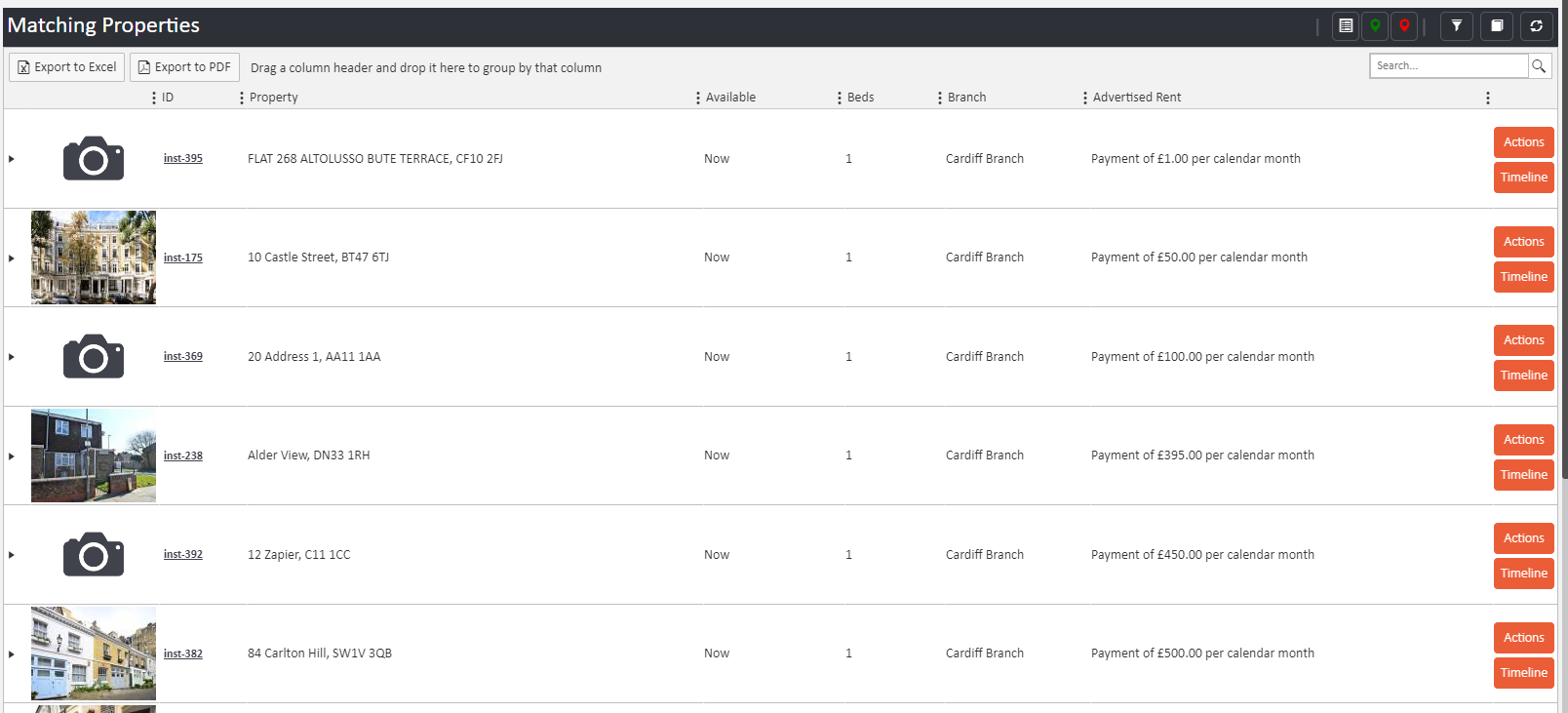
From this section, you can see all of the properties that the applicant has matched with and general information on those properties
Comments
0 comments
Article is closed for comments.