
Useful plugins - Legal4Landlords
Referencing Using an External Company
You can perform two types of referencing checks through agentOS: Credit checking and Full referencing via VanMildert. Below are the guides for using both of those options.
If you are using an external company to carry out your referencing or credit check, then you will just need to upload the document onto the system. To do this, you'll need to be on the tenant profile and search for them using the quick search bar. These document can be stored on a tenant in one of two places:
Firstly when you are on the tenant's profile, you will have an option on the left to Saved Documents. Then just click Upload on the right of the page
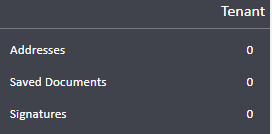
Secondly, there is a Referencing Documents section at the bottom of the ladder:
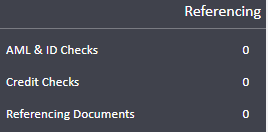
Click on Add in this section. Once the document slot has been created, just click onto it and you'll be able to store to document against the slot you've created.
Preforming A Credit Check Via agentOS & Viewing Historic Credit checks
N.B. - A Date of Birth must be entered on a person's profile before a Credit Check can be conducted.
To view all historic credit checks you will need to hover over the left hand side of the screen and select credit checks. You can also access this section within Office:
All of your previous checks will show here.

To add a brand new check, click on the widget within the Applicant or Tenant Record:
If you use just the Credit Check option, you'll see the following window:
Once a check has been submitted you will receive one of the following simplified results:
- Pass
- Caution
- Fail
- No Results Found
For Example:
For a person where a Caution result is returned, you now have the option to check the information provided and should you decide that you would like to proceed, you can override that result to a new Pass with Caution option from the Actions of the Credit Check results page.
Please note: Only checks returning a Caution result will show the option to override. A Reason must be provided when overriding, which will be recorded in Notes.
A check showing No Results Found normally means we're not able to match the person you're checking with the address you've entered. You can perform another check by entering different address details and trying again.
Please note: Any additional credit check attempts will be charged at your normal rate.
Full Referencing Options
To access the Rightmove referencing you will need to click onto the tenant profile that you'd like to carry out a reference. On the main info graphics screen you will have the option for Rightmove.
Please note that we facilitate the connection to Rightmove however it does pop out a separate window to connect you. As such you would require an account with them if you wish to begin using them. Please contact Rightmove for further information on costs.
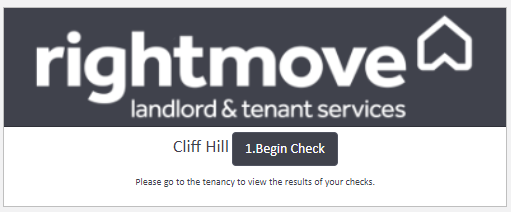
To Start a new check click onto Begin check (this will open a new browser screen with the Rightmove website. You need to follow the prompts on the website.
Once you have carried out your check you can click onto the Check results button to see the results of their check.
Comments
0 comments
Please sign in to leave a comment.