
The system now offers the ability to confirm booked appointments by SMS or email when using the Guest options in the diary.
When adding a Guest(found within the appointment itself) to an appointment, you are given options where you can 'Auto Confirm Appointment by Email or Auto Confirm Appointment by SMS':
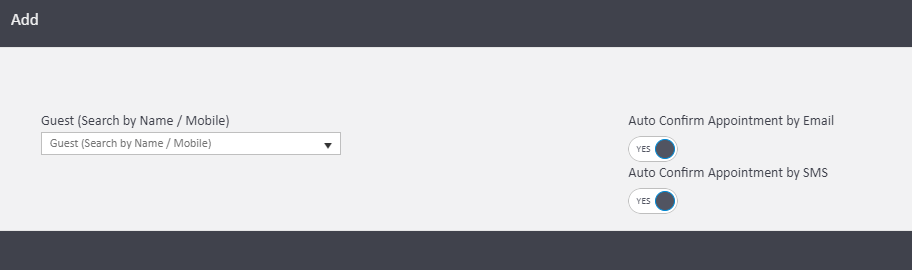
By clicking Add you'll be presented with the above pop up. Once you have connected your guest, the system will automatically send out to that guest in the selected formats, or you can make sure both are set to No if you didn't want to send a confirmation this time.
When adding an appointment using the Quick Add Appointment option in the diary the confirmation will be automatically sent to any Guests added on saving the appointment to the diary, depending on how these branch settings are configured.
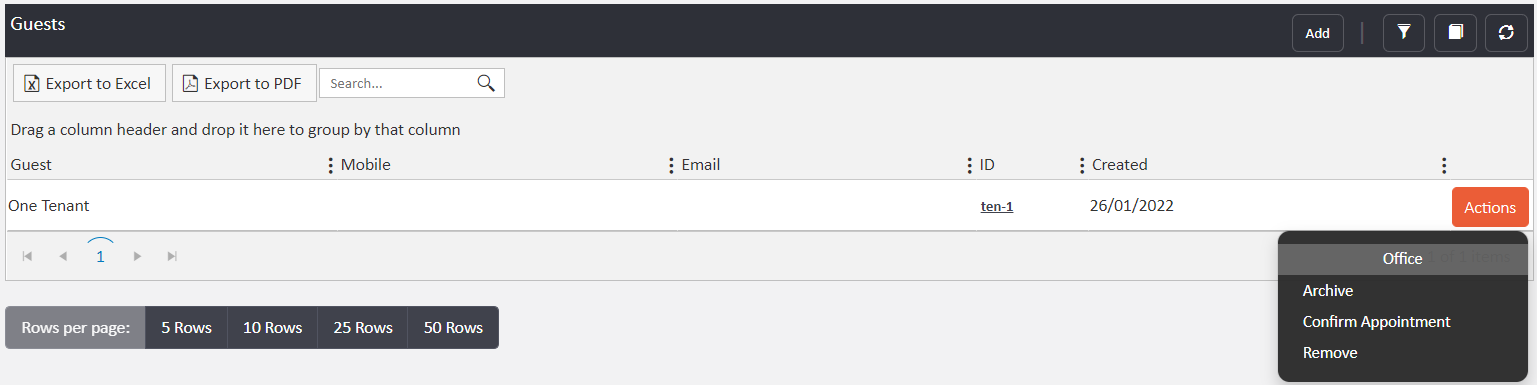
Appointments can also be manually confirmed as needed (such as in the event of a time or date change) by going to the Guests section inside the diary appointment, clicking Actions and Confirm Appointment:
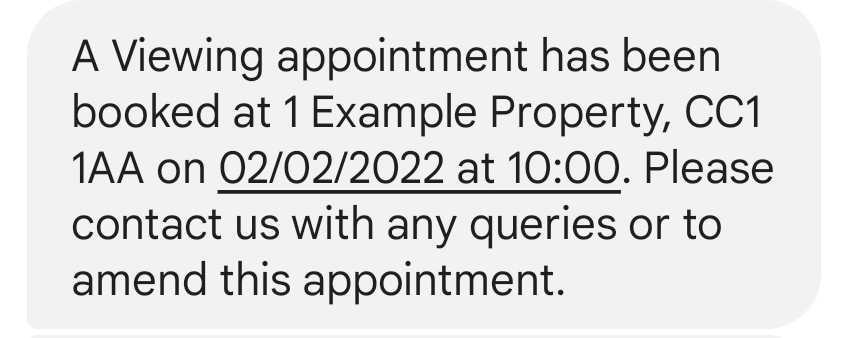
If Sales Properties or Letting Properties have been included in the booking prior to the appointment being confirmed then details will be included as part of the standard wording received, as well as details of the Appointment Type:
If a booking contains more than one property, the first listed in the appointment will be shown in the confirmation wording and the Email or SMS wording will include 'and others' to indicate that more than one is booked, as below:
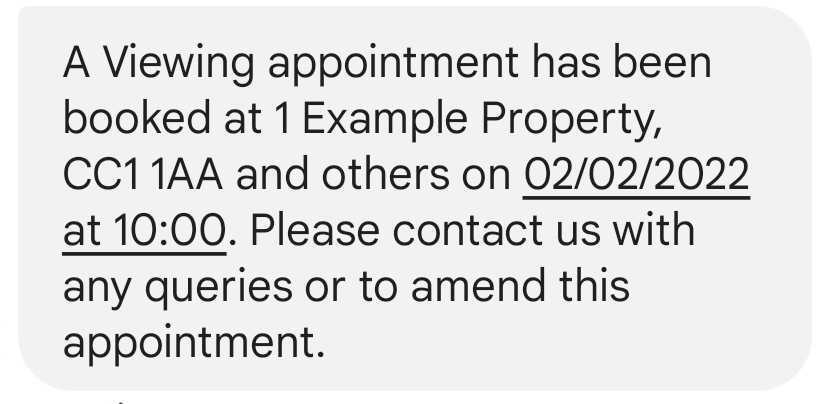
This is to reduce the number of SMS messages sent (and associated costs to you) that would otherwise be used in confirming an appointment where multiple properties will be attended.
On most Android and iOS devices, your client will also see the date and time as a clickable link within an SMS, which will allow them to add the details to their own calendar app:
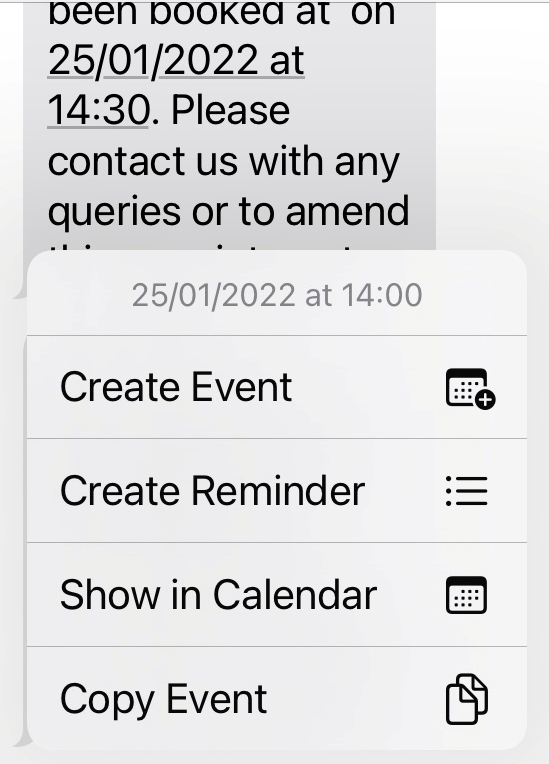
Please note: The user should consult the user guide or manufacturer of their device if this link option does not show, as this is not controlled from the agentOS side.
**A setting has also been added to the Admin section of each branch (under Branch Details), where a default can be set for these options, either Yes or No for each appointment:
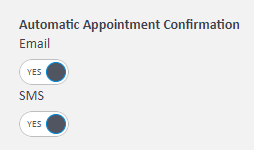
**Please contact Support to alter this setting.
Comments
0 comments
Please sign in to leave a comment.